

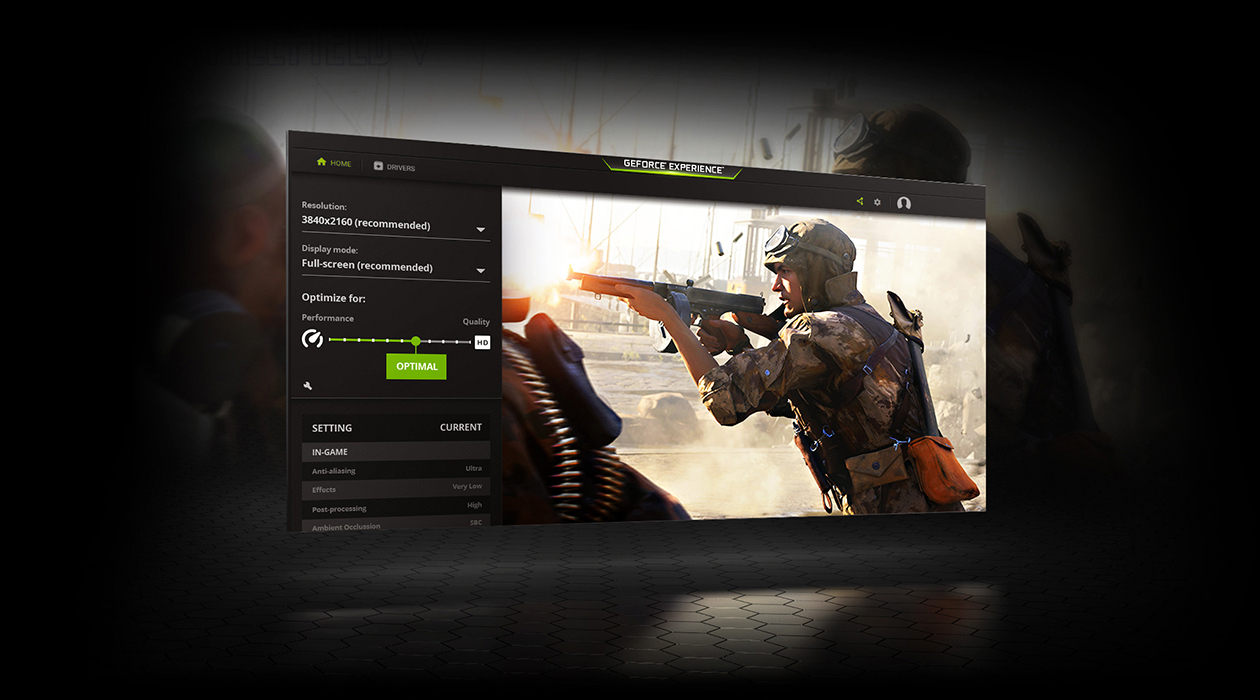
Graphics card drivers are the software layer that lets your GPU and operating system communicate. For gamers this means drivers can directly affect frame rate, smoothness, input latency and compatibility with new titles or APIs. This guide explains how drivers influence FPS, what to change in driver settings, and safe troubleshooting steps when performance drops.
How GPU drivers affect FPS
Drivers translate game and OS calls into commands the GPU hardware can execute. That translation, and the extra features the driver implements, determines how efficiently frames are rendered and presented. Key ways drivers influence FPS:
- Performance optimizations: Manufacturers add code paths that speed common rendering techniques, which can raise FPS in specific games.
- Frame pacing and presentation: Drivers control how rendered frames are delivered to the display. Poor frame pacing causes perceived stutter even when average FPS looks acceptable.
- Power and thermal behavior: Driver settings influence GPU clock states and power profiles. If the driver keeps clocks low to save power, FPS will drop.
- Latency controls: Features such as low-latency modes and CPU/GPU synchronization are implemented in drivers and can affect responsiveness and effective FPS.
- Compatibility and API support: New games often require updated drivers with support for the latest DirectX/Vulkan features. Old drivers may trigger crashes or force fallback paths that reduce FPS.
When updating drivers helps — and when it doesn’t
Updating to a newer driver often brings bug fixes, game-specific optimizations and support for new features. However, driver updates can occasionally introduce regressions. Consider these rules of thumb:
- Update before playing a brand-new triple-A release that calls for a “game-ready” driver.
- If your system is stable and performing well for your usual games, immediate updates are optional; wait a few days to ensure no widespread issues are reported.
- If FPS suddenly drops after a driver update, rolling back or doing a clean reinstall of the previous stable driver is a valid troubleshooting step.
Practical steps to optimize drivers for better FPS
Optimizing drivers combines keeping software current, choosing the right driver settings, and balancing image quality against performance.
1. Keep drivers reasonably current
Install updates from your GPU vendor when they address a game you play or fix a problem you’re seeing. Use the vendor’s installer or your OS update mechanism; both NVIDIA and AMD provide official installers with options for a standard or clean installation.
2. Use driver control-panel settings
Driver control panels let you create per-game profiles and set global defaults. Useful adjustments include:
- Power management mode — set to prefer maximum performance for gaming.
- V-Sync and frame limiters — disabling V‑Sync can increase FPS but may increase tearing; use frame limiters or adaptive sync where available (FreeSync/G‑Sync) to stabilize frame delivery.
- Texture filtering and anti-aliasing overrides — lowering quality here frees GPU time for higher FPS.
- Low-latency or “reduce render ahead” options — can improve responsiveness and sometimes raise effective FPS in CPU-limited scenarios.
3. Profile per game
Create a profile for each game so aggressive performance settings are used only when needed. That avoids sacrificing image quality in non-gaming apps.
4. Do a clean install when things misbehave
If driver upgrades leave you with crashes, artifacts or lower FPS, use the clean-install option in the official installer to remove leftover settings and restore defaults. Keep a restore point or note your previous driver version before changing anything.
Troubleshooting driver-related FPS drops
Follow this sequence when a driver change or update seems to have harmed performance:
- Confirm the change: did FPS drop only after an update? If yes, roll back to the previous driver version and test.
- Check temperatures and power: thermal throttling or power limits will lower clocks and FPS; ensure fans and cooling are functioning.
- Test a stable benchmark or another game: if all workloads show a drop, the driver or hardware is likely responsible; if it’s one game, check game patches or settings.
- Try a clean reinstall of the driver using the vendor’s installer.
- Update other system components: chipset drivers and OS patches can affect graphics performance indirectly.
When the GPU driver isn’t the bottleneck
Drivers can only do so much. If your CPU is maxed, RAM is limited, or the GPU itself is underpowered, changing drivers won’t produce large FPS gains. For a deeper look at how the CPU affects frame rate and where the real bottlenecks can be, see Does the CPU Affect FPS? A Clear Guide for Gamers.
Quick optimization checklist
- Install official vendor drivers when needed for new games.
- Use per-game driver profiles for power and quality settings.
- Enable adaptive sync or use frame limiters to reduce stutter and smooth presentation.
- Create a system restore point before major driver changes.
- Revert or clean-install drivers if performance or stability degrades after an update.
FAQ
How often should I update GPU drivers?
Update when a new driver explicitly addresses a game or bug you care about, or every few months for general improvements. If your system is stable, you can wait to see if a release has issues reported by others.
Will a driver update always raise FPS?
No. Updates can add optimizations for specific titles or fix regressions, but some changes are neutral or can accidentally lower performance in rare cases. Test and keep a rollback option.
Is overclocking safe for improving FPS?
Overclocking can increase FPS but also raises temperatures and power draw. Only attempt overclocking if you understand the risks, monitor thermals, and accept possible stability issues or reduced hardware lifespan.